Log onto the owner portal online at: https://portal.nrpartnersllc.com (See How to Log onto Portal for instructions on how to register).
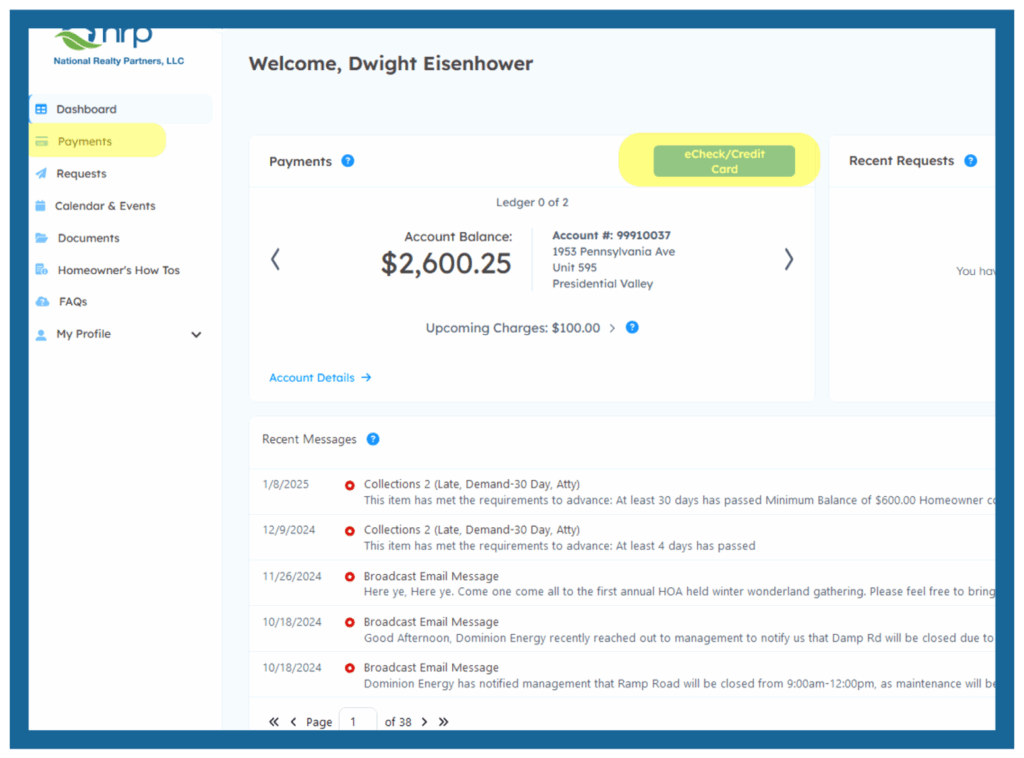
Upon login, you will be directed to the Dashboard – the primary home page for the owner portal.
To make an online payment, click the green “eCheck/Credit Card” button and to view transaction history, click Payments on the lefthand navigation panel.
At any point you can navigate back to the
Dashboard by clicking Dashboard on the
navigation panel.
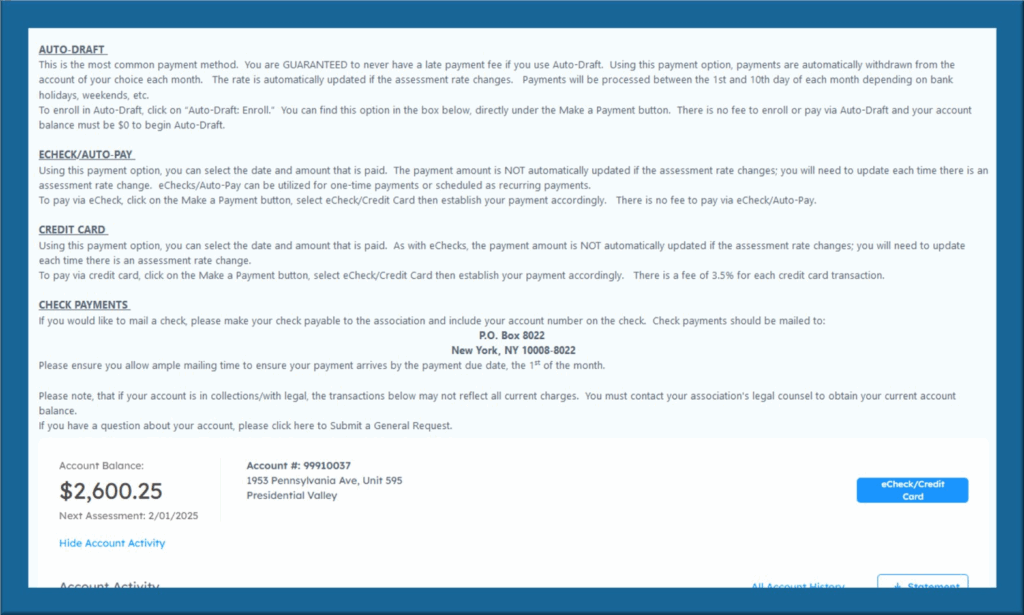
On the Payments page, you can create or modify online payments, as well as download reports of your payment history.
The payment types available are Auto-Draft and Zego (eCheck or credit card). Each payment type is described in detail on the following pages and on the Payments overview page.
To create a new payment, click the button of the corresponding payment type you would like processed.
Please note: to register for recurring Auto-Draft payments your balance must first be $0.00. First you must pay any outstanding balance in the form of a Credit Card or eCheck payment, then register for recurring future payments.
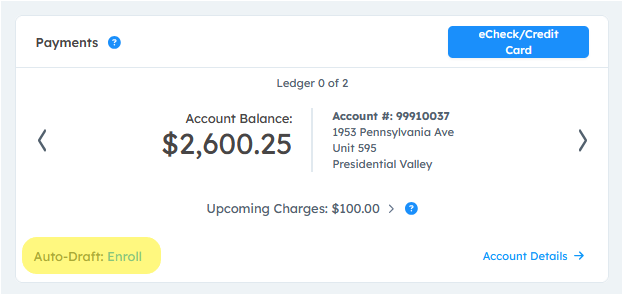
To process an Auto-Draft payment, click enroll on the Dashboard or Auto-Draft on the Payments page. Once on the Auto-Draft payment page, use the check boxes to confirm one or more accounts to enroll in autodraft, then click Enroll to be navigated to the payment processing page.
Enter your bank Account Number and Routing Number in the fields, and confirm your enrollment Start Month. Auto-Draft payments process automatically between the 1st and 10th of the month according to the assessment schedule outlined by your association (monthly/quarterly).
If your assessments increase or decrease your Auto-Draft payments will automatically update.
Lastly, type your name into the eSignature field and click Submit Payment.
To edit or delete an Auto-Draft payment, click Edit or Delete on the Auto-Draft payment page.

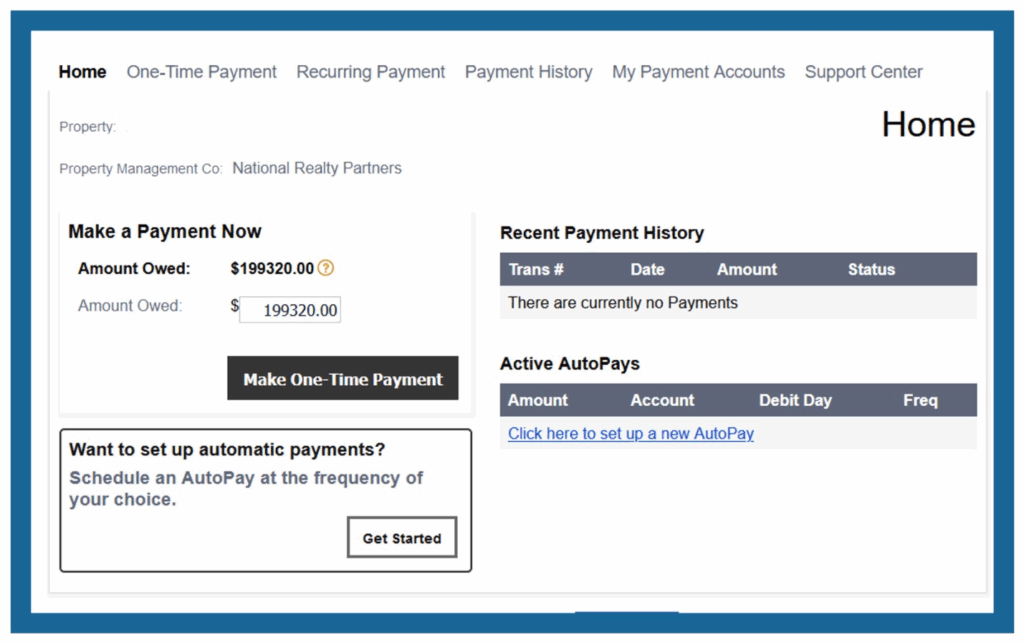
To process a One-Time eCheck, Recurring eCheck, or Credit Card payment, click eCheck/Credit Card on the Payments page.
You will then be directed to the 3rd-party payment page hosted by Zego Bank.
Click the Make One-Time Payment button to be directed to the one-time payment page. eCheck payments are free, but there is a fee for debit and credit card payments. Each payment option (eCheck, Debit Card, or Credit Card) and any corresponding fees will be listed on the payment confirmation page.
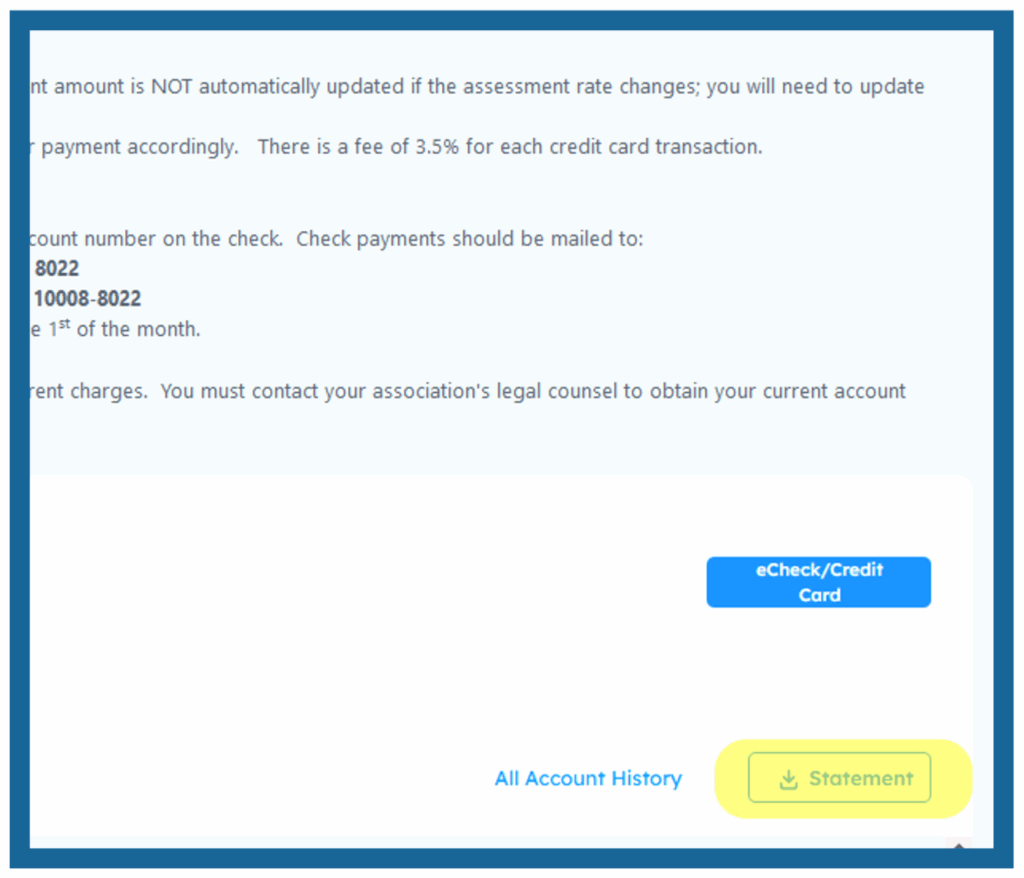
To download a report of your payment history, click ↓Statement on the Payments page.
Once you click ↓Statement a selection screen will display on your window. Use the drop down menus to select between accounts, report types, and report duration timeline.
Your report will be provided in the form of a downloadable PDF document.
If you require a report generated on NRP letterhead, please contact NRP directly via phone or email.